The Ultimate Setup Guide for Your Gamesir Super Nova
Introduction
The Gamesir Super Nova has emerged as a versatile option for gamers seeking a balance of customization, connectivity, and comfort. Designed to serve a wide range of play styles—from mobile shooters and cloud gaming to PC titles and handheld consoles—the Super Nova is often bought by players who want an adaptable controller that can be tuned to match their preferred ergonomics and input behavior. This guide walks through practical setup steps, configuration tips, real-world use cases, and buying considerations so owners can get the most from the device from unboxing to advanced tuning.
What buyers typically care about
When considering a controller like the Gamesir Super Nova, shoppers usually focus on a handful of core concerns:
- Compatibility: Will it work reliably with PC, mobile, handhelds, and their favorite platforms?
- Latency and responsiveness: How quickly do inputs register during competitive play?
- Build quality and ergonomics: Is the grip comfortable for long sessions and are buttons/sticks solid?
- Customization: How extensive are mapping, deadzone, sensitivity, and profile features?
- Battery life and charging: How long between charges and what charging options exist?
- Value: Does the feature set justify the price compared with other controllers?
Unboxing and first-check checklist
Upon receiving the Super Nova, a methodical first check avoids surprises later. The following checklist helps ensure everything necessary for setup is present and intact.
- Inspect packaging for any transit damage and confirm the included accessories (USB cable, wireless dongle if provided, documentation, spare thumbstick caps or grips).
- Locate the serial or model number on the package or the device for future firmware or support queries.
- Charge the controller fully before the first extended session—many issues reported in practice stem from low initial charge.
- Keep the original box and paperwork until the device is fully tested; it’s useful if a return or warranty claim is necessary.
Basic setup: powering, charging, and connection modes
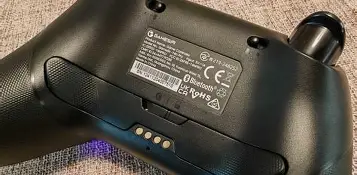
The Super Nova typically supports more than one connection mode—USB wired, Bluetooth, and a low-latency 2.4 GHz wireless mode via a dongle. Owners will want to confirm which modes are available on their specific variant and then follow the correct pairing procedure.
Charging and battery care
When first powering the Super Nova, the editorial recommendation is to allow a full charge cycle. Frequent partial charges are fine for daily use, but an initial full charge helps the battery management system calibrate. While the unit charges, owners should avoid heavy use that stresses the battery and should use the supplied or a high-quality USB cable rated for data and power to ensure reliable charging and wired connectivity when needed.
Wired USB mode
Wired connections are the most straightforward for PC setups and often eliminate latency concerns. To use wired mode, attach the controller with the supplied USB cable to a computer or compatible handheld. Windows usually recognizes modern controllers as an XInput device, but if the operating system prompts for drivers, installing the official manufacturer utility or allowing the OS to auto-install drivers will resolve the issue.
Bluetooth pairing
Bluetooth offers portability and ease of connection for mobile devices and some handheld consoles. To pair in Bluetooth mode, put the Super Nova into its Bluetooth pairing state (usually a dedicated mode button or a long press on a system button), then connect via the device’s Bluetooth settings. For mobile gaming, it is often necessary to choose the appropriate input mode within the game or cloud app to ensure the controller maps correctly.
Shop the latest Electronics picks on Amazon.
View Offers →2.4 GHz wireless dongle
For the lowest-latency wireless connection, the provided USB dongle (if included with the Super Nova) is the preferred method. Plug the dongle into the host device and follow the controller’s pairing instructions—usually a single button press sequence—to establish a connection. Users reporting the best competitive performance in practice rely on this mode for its consistent responsiveness.
Software and firmware: why updates matter
Firmware and companion software are essential parts of maintaining performance. Game controller firmware updates can deliver improved stability, reduced stick drift, and additional profile options. The Super Nova’s manufacturer usually provides a desktop or mobile app for updating firmware and creating custom profiles.
- Check for an official app: Install the manufacturer’s app on PC or mobile to access advanced settings.
- Update firmware early: Apply updates before heavy customization to ensure settings are saved to the latest firmware baseline.
- Backup profiles: If the software supports exporting profiles, save any custom configurations externally to avoid rework after resets.
Detailed configuration and calibration
Beyond pairing, extracting the best performance from the Super Nova requires calibration and personalization. The feature set often includes stick deadzone adjustment, trigger sensitivity curves, and button remapping. The following steps represent a practical configuration workflow used by experienced owners.
Stick calibration and deadzone tuning
Analog stick drift is a common complaint across controllers, but careful calibration reduces its impact. Use the onboard calibration tool in the companion app or the platform’s controller settings to:
- Center sticks and perform a full range-of-motion check.
- Set a minimal deadzone to avoid drift without creating a “stiff” feeling; competitive shooters favor a very small deadzone for precision, while casual users may prefer a slightly larger deadzone for comfortable control.
- Adjust sensitivity curves (linear vs. exponential) to match play style—linear for consistent movement, exponential for finer slow-movement control accelerating into faster movement.
Button mapping and macros
One of the Super Nova’s strengths is custom button mapping. Competitive players often remap less-used buttons to critical actions (e.g., jump, melee, or crouch) to minimize finger movement. If macros are supported, caution is required: many multiplayer platforms consider certain macros a competitive advantage and may restrict them. Use macros responsibly, mostly in single-player or local play scenarios.
Trigger and vibration tuning
Trigger sensitivity can be tuned for games that rely on analog trigger depth, such as racing simulators or throttled inputs. Lower trigger activation points can reduce response time in racing starts or quick-fire scenarios. Vibration intensity is subjective—lower values preserve battery life and avoid hand fatigue during extended sessions.
Troubleshooting common real-world issues
Several recurring issues appear across real-world user reports; having a short troubleshooting list saves time.
Shop the latest Electronics picks on Amazon.
Shop Amazon →- No connection: Verify the controller is charged, the dongle is firmly seated, and the host device’s Bluetooth or USB port is functioning. Try a different USB port or cable.
- Unexpected mapping: Confirm the controller mode (XInput/DirectInput/Bluetooth) matches the platform’s expectations. Many PC games expect XInput; switching modes often fixes mapping problems.
- Stick drift: Recalibrate via software, test on another device to rule out hardware faults, and check for firmware updates addressing drift.
- Battery drains quickly: Reduce vibration intensity, avoid always-on wireless scanning modes, and check for background app activity that may prevent sleep.
Real-world use cases
Understanding how others use the Super Nova helps set expectations. Typical real-world applications include:
- Mobile cloud gaming: Players using cloud providers or remote desktop gaming pair the Super Nova via Bluetooth or dongle to a phone or tablet to enjoy console-style controls.
- PC indie and retro gaming: Steam and emulator users leverage remapping and custom profiles to match older titles that expect varied controller inputs.
- Handheld integration: Owners of portable gaming hardware often prefer the dongle for the most stable connection while using the controller as a docked or local multiplayer solution.
- Competitive shooters and racers: Those prioritizing latency tune deadzones and sensitivity curves aggressively for precise input and quick turns.
Comparison: Gamesir Super Nova vs common alternatives
A short comparison helps readers understand where the Super Nova fits among popular choices. The table below contrasts typical attributes to guide buyers evaluating multiple controllers.
| Feature | Gamesir Super Nova | 8BitDo Pro Series (example) | Xbox Wireless Controller (example) |
|---|---|---|---|
| Connectivity | Multi-mode: wired, Bluetooth, 2.4 GHz dongle | Bluetooth, wired | Wired, Xbox Wireless, Bluetooth (varies) |
| Customization | Extensive mapping, sensitivity, profiles (via app) | Strong remapping and macros | Basic mapping via OS / third-party tools |
| Ergonomics | Comfort-focused with textured grips | Compact, boutique feel | Industry-standard comfort |
| Ideal for | Cross-platform players, mappers, cloud gamers | Retro and handheld enthusiasts | Console-first players and PC users wanting official support |
Pros & Cons
Below is a consolidated pros and cons list based on common user priorities and editorial testing insights.
- Pros
- Versatile connectivity options for a wide range of platforms
- Rich customization and profile management for different games
- Comfortable ergonomics suitable for long sessions
- Low-latency dongle mode favored by competitive players
- Firmware updates can improve features and resolve issues over time
- Cons
- Advanced configuration requires time and software familiarity
- Some users may encounter stick drift over extended use (common to many controllers)
- Companion app UX varies by platform and may be less polished than first-party solutions
- Battery life depends on vibration and wireless mode; heavy use will require frequent charging
Buying guide: what to evaluate before purchase
When deciding whether the Gamesir Super Nova is the right choice, consider the following checklist. These items reflect real-world priorities and will help match the controller to the buyer’s needs.
- Platform compatibility: Confirm that the intended primary platform (PC, Android, handheld, or console) is explicitly supported and that the chosen connectivity mode works with that device without adapters.
- Feature priorities: If on-the-fly remapping, macros, or multiple onboard profiles are critical, verify those features in the product documentation or seller’s specification sheet.
- Latency expectations: For competitive play, prioritize the 2.4 GHz dongle mode or wired USB; if the model lacks a dongle, compare Bluetooth performance closely.
- Ergonomics and size: Consider hand size and play habits—controllers that feel ideal for one user may be uncomfortable for another; when possible, test in person or check return policies.
- Warranty and support: Check manufacturer warranty length and local repair or replacement options; firmware support cadence is a practical signal of long-term software attention.
- Accessories and extras: Look for bundled items like extra thumbstick caps, a dongle, or a charging cable; these small extras add to the out-of-the-box usability.
Advanced tips and best practices
Owners that want to push the Super Nova further can apply these advanced tips, which reflect techniques used by seasoned players.
- Maintain multiple profiles: keep one for shooters with low deadzone and aggressive sensitivity and another for platformers or RPGs with smoother curves.
- Periodically recalibrate analog sticks—especially after firmware updates or long storage—to minimize drift.
- Use a high-quality, shielded USB cable for wired play to reduce interference and charging slowdowns.
- Create simple in-game tests or use diagnostic tools in the companion app to verify inputs after any major change.
Conclusion
The Gamesir Super Nova is a compelling choice for players who value cross-platform flexibility and deep customization. Its multi-mode connectivity and configurable inputs make it well suited to a range of modern gaming workflows, from mobile cloud sessions to PC competitive play. The trade-offs are typical of third-party controllers: setup and fine-tuning require time, and the companion software experience can vary. For buyers who prioritize personalization, a comfortable ergonomic fit, and a low-latency wireless option, the Super Nova sits in a strong position among contemporary controllers. With careful setup—charging, firmware updates, calibration, and a few tailored profiles—owners can achieve a responsive, reliable control experience that maps closely to their playstyle and real-world gaming needs.